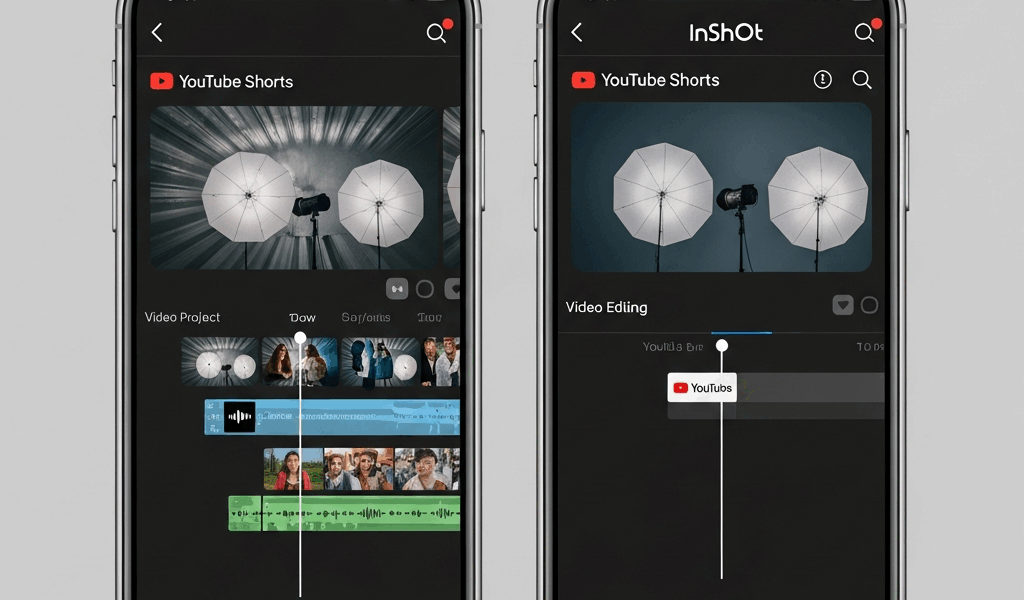
CapCut vs InShot for YouTube Shorts — Which to Pick
The CapCut vs InShot debate for YouTube Shorts is one I’ve had with myself probably forty times in the last two years. I edit Shorts on my phone most mornings before work, usually sitting at my kitchen table with a coffee that’s gone cold by the time I actually hit export. I’ve used both apps extensively — not for casual Instagram reels or TikToks, but specifically for YouTube Shorts where the algorithm rewards watch time, retention, and production quality in ways that actually punish lazy editing. After burning through both apps on hundreds of real uploads, I have a clear opinion. Let me just give it to you straight.
Speed Test — Edit a Real Short in Both Apps
Grabbed the same 90-second raw talking-head clip and edited it to a 55-second Short in both apps on a Samsung Galaxy S22. Same footage. Same export settings. 1080×1920, 60fps, highest quality. I timed myself.
InShot finished first. Not by a little — by a lot.
The InShot edit took about 8 minutes and 40 seconds from import to export. The CapCut version took just over 14 minutes. That gap matters when you’re trying to post daily or even three times a week. Over a month of daily uploads, you’re looking at nearly 90 extra minutes spent in CapCut doing the same basic work.
Here’s what drove the time difference. InShot’s timeline is stripped down in a way that feels almost aggressive. You tap the clip, you see your trim handles, you cut. The UI doesn’t ask you what you want to do with effects before letting you edit audio. CapCut has a more layered interface — it’s genuinely more powerful, but that power comes with friction. Every time I wanted to trim a talking-head clip in CapCut, I found myself one or two taps deeper into menus than I needed to be.
Probably should have opened with this section, honestly, because the speed gap alone rules out one app for a specific type of creator. If you’re making simple cuts, reaction content, or talking-head commentary Shorts — InShot’s 8 to 10 minute average versus CapCut’s 12 to 15 minute average is a dealbreaker. Your time has value. Multiply that across 30 uploads a month.
Where CapCut catches up on speed is in templated content. If you’re making trending audio Shorts with text overlays and transitions, CapCut’s templates genuinely remove 5 to 7 minutes of setup work per video. The app was designed around that workflow. InShot’s template library exists but feels like an afterthought compared to CapCut’s, which gets refreshed constantly with trending formats.
- InShot average edit time for basic talking-head Short — 8 to 10 minutes
- CapCut average edit time for basic talking-head Short — 12 to 15 minutes
- CapCut average edit time using a pre-built template — 5 to 8 minutes
- InShot average edit time using a pre-built template — 10 to 13 minutes
The lesson I learned the hard way: I spent three weeks defaulting to CapCut for everything because the output looked polished. My upload consistency dropped. Went from posting 5 Shorts a week to 3. Switched back to InShot for simple edits and the schedule fixed itself immediately. Pick the tool that fits the content type, not the tool with the most features.
AI Features That Actually Matter
This is where CapCut pulls ahead. It’s not close.
CapCut’s auto-caption feature is genuinely one of the best free tools available on mobile right now. I’ve tested it against paid services. For English-language speech at normal pace, CapCut hits around 92 to 95 percent accuracy without any correction, which means I’m fixing maybe 3 to 5 words per minute of footage instead of rewriting full sentences. The captions auto-style themselves to fit a vertical 9:16 frame, they animate on a word-by-word basis by default, and you can adjust font, size, color, and position in about 30 seconds. The $0 price tag for this feature inside the free tier is absurd.
InShot has auto-captions too. They’re worse. On the same test clip, InShot’s captions needed corrections on about 15 to 20 percent of words — roughly three times the error rate. The styling options are more limited. And the placement behavior is less intuitive for Shorts specifically, requiring manual repositioning almost every time.
Beat sync is the other AI feature that genuinely changes a workflow. CapCut’s beat sync analyzes audio tracks and places cut markers at the beat drops automatically. For Shorts built around trending audio — the kind that gets pushed by YouTube’s Shorts shelf — this feature alone saves 4 to 6 minutes per video. InShot has no equivalent. You’re tapping cut points manually while scrubbing through the timeline with your thumb, which is both slower and less precise.
CapCut also launched an AI B-roll suggestion tool in late 2023 that pulls from a stock library and matches clips to your narration topics. It’s imperfect — maybe 60 percent of suggestions are actually usable — but 60 percent of automated B-roll is still faster than sourcing all of it yourself from Pexels or Pixabay manually.
InShot’s AI features outside of captions are minimal. There’s background removal, which works reasonably well on high-contrast footage, and a noise reduction filter that’s genuinely useful for outdoor audio. That’s mostly it. InShot made a choice to be a fast, clean, reliable editor. CapCut made a choice to load in AI tools as fast as ByteDance can ship them. Neither choice is wrong. They’re just different products.
The Verdict for YouTube Shorts Creators
Here it is. No hedging.
Use InShot if you make talking-head Shorts, commentary content, reaction videos, or anything where the primary edit is cutting dead air and cleaning up pacing. InShot is faster, less distracting, and produces a clean output that YouTube’s compression handles well. The InShot Pro subscription runs $3.99 per month or $14.99 per year — I’ve been on the annual plan for two years and consider it one of the better value subscriptions I pay for.
Use CapCut if you make effects-heavy Shorts, trending audio content, educational Shorts with on-screen text, or anything that benefits from AI captions and beat sync. CapCut’s free tier is genuinely generous — the watermark removal requires a free account, not a paid one, which puts it ahead of InShot’s free tier where the watermark is more persistent. CapCut Pro is $7.99 per month, but most Shorts creators don’t need it.
The winner for pure YouTube Shorts output? CapCut, narrowly. The AI captions alone justify it for anyone doing talking-head content at volume, even though InShot beats it on raw editing speed. Shorts with accurate, animated captions retain viewers longer. Longer watch time means better distribution. Better distribution means channel growth. That chain is too important to ignore for a feature that costs nothing extra.
That said, I keep both apps installed. I open InShot when I’m short on time and the content is simple. I open CapCut when the Short needs captions, beat sync, or a specific effect I can’t replicate elsewhere in a reasonable amount of time.
What About DaVinci Resolve Free
Surprised by how often this question comes up in the YouTube Shorts conversation. The answer is mostly — not yet, and probably not on your current timeline.
DaVinci Resolve 18 is free, it’s genuinely professional-grade, and it runs on a MacBook Air M2, a Windows desktop, and even a reasonably powered laptop without costing a dollar. The color grading tools alone embarrass anything available on mobile. The Fairlight audio suite inside Resolve handles noise reduction and EQ in ways that InShot and CapCut simply can’t touch.
Tormented by a batch of outdoor Shorts with terrible wind noise, I moved that specific project to DaVinci Resolve and ran the audio through Fairlight’s noise reduction. The result was genuinely broadcast quality. On mobile, that same audio would have been a muffled mess or silenced with background music to cover it up.
The real limitation is workflow speed. Resolve is a desktop application with a learning curve measured in weeks, not hours. Exporting a vertical 9:16 Short from Resolve requires setting up a custom project format — 1080×1920, pixel aspect ratio 1.0, timeline frame rate matched to your footage — which is a 10-minute setup process you only do once per project template, but it’s still a barrier. On mobile, you tap the 9:16 format button and move on.
The right moment to bring in DaVinci Resolve is when your Shorts are generating enough revenue or brand value to justify the time investment, when your audio or color quality is actively limiting your channel growth, or when you’re producing Shorts that will also be repurposed as long-form content that needs consistent color grading across both formats. Until those conditions are true, the phone stays the primary editing device and the argument stays between CapCut and InShot.
For most Shorts creators reading this right now — CapCut handles your AI features, InShot handles your speed edits, and DaVinci Resolve is the tool you grow into rather than the tool you start with.




Stay in the loop
Get the latest make video short updates delivered to your inbox.