DaVinci Resolve vs CapCut for Beginners — 2026
DaVinci Resolve vs CapCut has gotten complicated with all the breathless “best app for beginners” noise flying around. Everyone’s got a take. Feature tables, spec comparisons, affiliate links dressed up as advice. What nobody tells you is that picking the wrong one doesn’t just waste an afternoon — it can kill your momentum entirely before you post a single video. I built a YouTube channel from scratch over about three months, bouncing between both apps, shooting Shorts and the occasional 10-minute tutorial. The comparison articles I read beforehand were useless. They gave me charts. What I needed was someone to tell me which app would let me finish something today — and which one would make me actually good in six months. Turns out those are two completely different questions.
This article includes affiliate links. We may earn a commission at no extra cost to you.
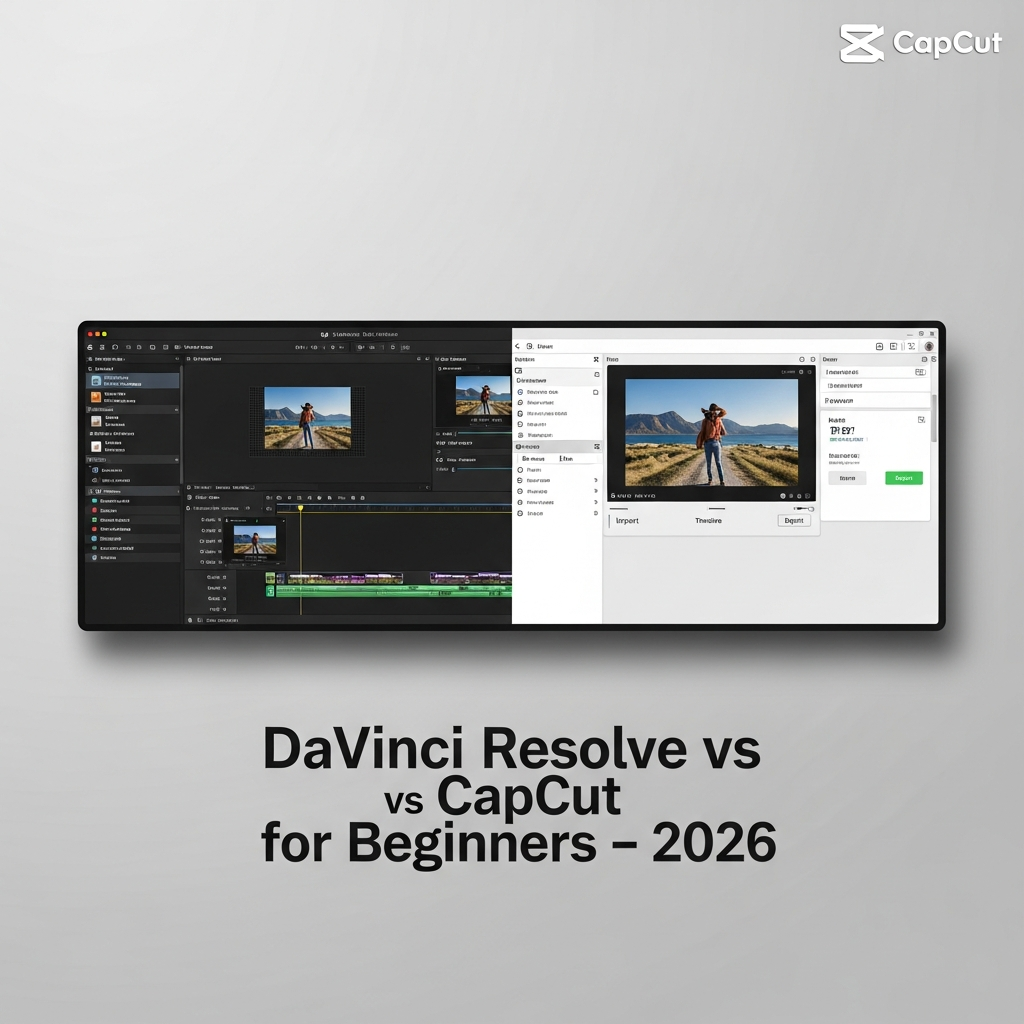
Making a YouTube Short in Each App
Same project, both apps. Here’s what I worked with: 47 seconds of screen recording, a talking-head clip shot on an iPhone 14 Pro, and a royalty-free track pulled from Pixabay. The goal was a polished YouTube Short — captions, a zoom punch at a key moment, a text hook up front. Nothing fancy. Just a finished video.
The CapCut Workflow — About 5 Minutes
I opened CapCut on my MacBook — version 5.9, though the iOS version behaves nearly identically — imported the clips, and the app detected 9:16 automatically when I selected “Short” in the new project menu. Everything lived in one bottom toolbar. Trim handles, text, auto-captions, transitions. No hunting around sub-menus.
- Import clips: 20 seconds
- Trim and reorder in the timeline: 1 minute
- Auto-captions through the “Text” menu — 47 seconds of dialogue transcribed in roughly 8 seconds: 30 seconds
- Zoom keyframe at the 00:12 mark via the “Animation” panel: 45 seconds
- Pixabay track dropped in, ducked to -18dB with the volume envelope: 1 minute
- Export at 1080×1920, 60fps: 90 seconds
Blank project to exported file: 4 minutes and 53 seconds. I timed it on my phone.
The DaVinci Resolve Workflow — About 20 Minutes
My first Short in Resolve was genuinely humbling. Version 19.1, free tier. The app opens into a project manager before you touch anything. Then you build a timeline. Then you notice the timeline is 16:9 by default — so you dig into Project Settings, change the resolution to 1080×1920, and assume you’re done. You’re not. The pixel aspect ratio is a separate setting. Fun discovery at minute seven.
Once the timeline was actually right:
- Import to Media Pool, drag to timeline: 3 minutes — and that includes the setup confusion
- Trim clips in the Cut page: 4 minutes
- Captions — no one-click auto-caption on the free tier in 2026, so I built a Subtitle track by hand: 7 minutes
- Zoom punch via Transform controls in the Inspector: 2 minutes
- Audio mixing in the Fairlight page: 2 minutes
- Deliver page export: 2 minutes
Total: just over 20 minutes. And I already knew my way around. A true beginner cracking open Resolve for the first time could realistically spend 45 minutes on that same Short — maybe more.
When CapCut Is the Better Choice
Probably should have opened with this section, honestly. Most beginners in 2026 are making short-form content, and CapCut is just the faster path to looking like you know what you’re doing.
CapCut wins clearly in these situations:
- Mobile editing — The iOS and Android apps are genuinely full-featured. I edited a 60-second Reel entirely on my phone during a train ride from Philadelphia to New York. Resolve has no mobile version — not even a lite one.
- Social media templates — Thousands of pre-built formats for TikTok, Reels, and Shorts. Swap your footage in, adjust the text, export. Some of them are honestly impressive for how polished they look out of the box.
- AI captions — Fast and accurate. Across 15 clips with varied accents and real background noise, CapCut hit roughly 94% accuracy before any manual correction. That’s not a rounding error — that’s actually useful.
- Quick turnaround content — If you’re posting daily or close to it, Resolve’s setup overhead alone will wreck your schedule. CapCut just gets out of your way.
- No learning budget — One weekend, need to make something, no prior experience. CapCut is the answer. Not a close call.
The honest limitation: CapCut’s color tools are shallow. Audio mixing works but doesn’t go deep. And if you’re building toward agency edits, branded content, anything with a real deliverable — CapCut won’t grow with you the way Resolve will. That’s not a knock on CapCut. It’s just not what it’s built for.
When DaVinci Resolve Is Worth Learning
Frustrated by the flat, washed-out look of my early CapCut exports, I eventually committed to Resolve’s Color page. That one decision changed how I think about editing entirely.
But what is the Color page, exactly? In essence, it’s a node-based color grading environment with professional-grade tools. But it’s much more than that — Hollywood features get graded in Resolve. The exact same software. Free. That still kind of breaks my brain.
Resolve earns the time investment for:
- Color grading — Primaries wheels, curves, qualifiers, PowerWindows, full node graph. Nothing in CapCut is in the same neighborhood. Flat footage, bad skin tones, tricky mixed lighting — Resolve handles it properly instead of papering over it.
- Long-form content — Editing a 15-minute YouTube video in CapCut starts to feel claustrophobic. Resolve’s Edit page — track management, compound clips, nested timelines — handles complexity without things getting messy.
- Audio mixing — The Fairlight page is a full DAW. EQ, compression, noise reduction, bus routing. I used it to rescue a windy outdoor interview that CapCut’s noise reduction had chewed up and basically destroyed.
- Professional growth — Resolve is industry-standard at the prosumer and professional level. Skills you build here transfer to paid work. CapCut skills don’t move in the same direction — at least not yet.
- Export control — Codecs, bitrates, color spaces, delivery formats, all of it granular. Relevant the moment a client emails asking for a ProRes 422 HQ master.
The free version — Resolve 19 — is missing a handful of things locked behind the $295 Studio license: certain noise reduction tools, some collaboration features, a few effects. For most beginners, the free tier covers everything they’ll actually need through at least year one. Don’t make my mistake of assuming you need Studio immediately. You almost certainly don’t.
The Learning Curve — A Reality Check
Here’s the number that matters: CapCut takes about 30 minutes to reach basic competency. Resolve takes weeks — not weeks of passive watching, but weeks of active, structured practice before the interface stops feeling like it’s working against you.
I lost real time early on because I tried to learn Resolve the same way I’d learned CapCut — exploration, trial and error, clicking everything to see what it did. In CapCut, that approach works great. The interface is built for it. In Resolve, exploration without structure sends you straight into rabbit holes. I spent two hours on the Fusion page — Resolve’s motion graphics compositor — before realizing I didn’t need it for anything I was actually making. Two hours. Gone.
The thing that finally worked: Casey Faris’s beginner series on YouTube. Free, roughly four hours spread across eight videos. After that, the app clicked. Before it, it genuinely didn’t — and I’d been trying for weeks.
What Your Goals Actually Determine
The learning curve only matters once you’re clear on what you’re building toward. That’s what makes this choice endearing to us beginner editors — it’s less about the software and more about being honest with yourself.
- Growing a TikTok or posting Reels consistently — Start with CapCut. Full stop.
- Building a YouTube channel with longer videos — CapCut for your first ten videos while you learn Resolve in the background. Transition when Resolve stops feeling hostile.
- Eventually doing video work professionally — Start learning Resolve now, even if progress is slow. The investment compounds in ways CapCut can’t match.
- Editing on a phone — CapCut, obviously. Resolve isn’t even an option here.
One thing worth saying plainly: these apps aren’t competing for the same job. CapCut is a content creation accelerator. Resolve is a professional post-production suite with a free tier bolted on. Comparing them directly is a bit like comparing a $12 IKEA chef’s knife to a $180 Wüsthof Classic 8-inch — both cut things. The IKEA knife is faster to grab and needs zero training. The Wüsthof makes you a better cook over time, assuming you actually use it.
Pick based on where you are right now and where you want to be in 12 months. Neither is wrong. They’re just wrong for different situations — and knowing which situation you’re in is the whole ballgame.




Stay in the loop
Get the latest make video short updates delivered to your inbox.