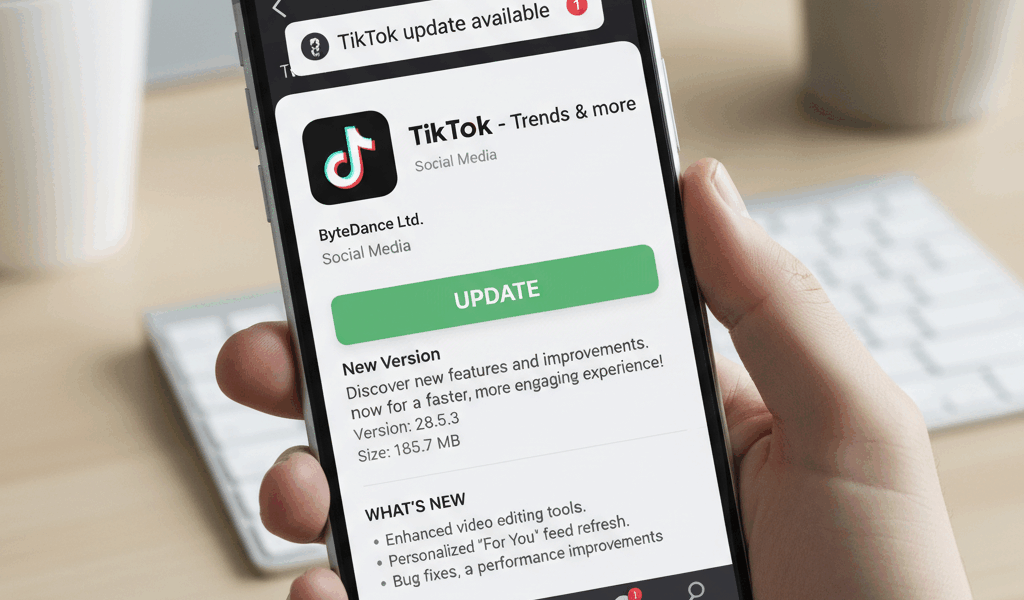
Video How to Update TikTok advice has gotten complicated with all the outdated tips and platform changes flying around. Here’s what actually works in 2026.
How to Update TikTok
TikTok pushes updates frequently. New features, bug fixes, security patches. Here’s how to stay current.
iPhone
Open the App Store. Tap your profile icon in the top right. Scroll down to see pending updates. If TikTok’s there, hit Update.
Turn on automatic updates if you don’t want to think about it: Settings > App Store > toggle on App Updates.
Android
Open Google Play Store. Tap the menu icon, then My apps & games. Find TikTok, tap Update if it’s available.
For automatic updates: Play Store > Settings > Auto-update apps. I set mine to “Wi-Fi only” so it doesn’t eat through mobile data.
Huawei (No Google Services)
Use the AppGallery. Tap Manager at the bottom, then Updates. Same process, different store.
Update Not Working?
A few things to try:
Check your storage. Updates need room. Delete some old photos or apps you don’t use.
Restart your phone. Fixes more problems than you’d think.
Check your connection. Unstable Wi-Fi can interrupt downloads.
Clear the app store cache. On Android: Settings > Apps > Google Play Store > Clear Cache.
Why Bother Updating?
New features are nice, but security patches matter more. Outdated apps can have vulnerabilities. Plus, some effects and sounds only work on newer versions.
If the app’s been acting buggy – crashing, slow, glitchy – an update often fixes it.




Stay in the loop
Get the latest wildlife research and conservation news delivered to your inbox.