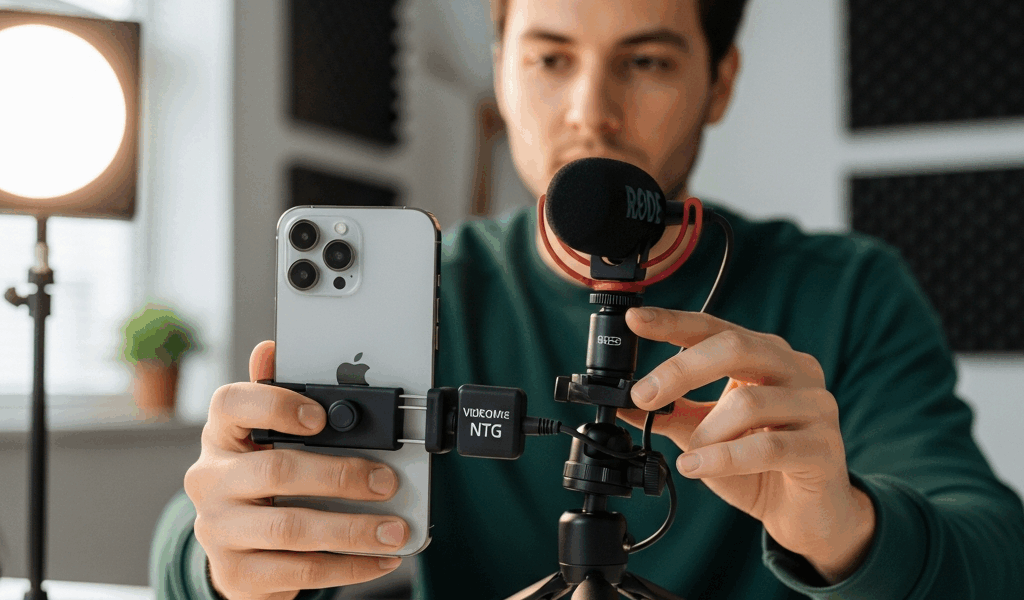
How to Record Audio on iPhone for YouTube Shorts That Sounds Professional
Learning how to record good audio on iPhone for YouTube Shorts was the thing that actually moved the needle for my channel — not better lighting, not a new camera, not more consistent posting. Audio. I spent six months uploading Shorts where I sounded like I was recording inside a tin can, and the watch time showed it. People tap off fast when the audio feels off, even if they can’t articulate why. The good news: your iPhone is already a capable recording device. You’re probably just using it wrong.
This isn’t about buying expensive gear. Most of what I’m going to walk through costs nothing, or close to it. Let’s get into it.
Built-In iPhone Audio Is Surprisingly Good — If You Do This
The iPhone’s built-in microphones are genuinely underrated. Apple has put serious engineering into them, and the results can be impressive when you’re not fighting the hardware. The problem is most creators treat the phone like it’s a camera first and an audio recorder as an afterthought.
Here’s what actually matters for built-in recording.
Distance From Your Mouth
Six to eight inches. That’s your sweet spot. Too close and you get plosives — those harsh popping sounds on words starting with P and B. Too far and you lose presence, picking up room noise instead of your voice. I used to hold my phone at arm’s length for the aesthetic framing and wondered why I sounded distant and hollow. That was the entire problem.
For Shorts where you’re filming yourself talking to camera, prop the phone at that distance rather than holding it. A cheap phone stand — I picked up a Lamicall adjustable desktop stand for around $13 on Amazon — solves this completely.
Microphone Orientation
On most iPhones, the primary microphone is at the bottom of the device, near the Lightning or USB-C port. When you’re recording video through the Camera app, the phone uses a combination of mics and applies its own processing. For straight-to-camera Shorts recording, hold the phone in portrait mode with the bottom angled slightly toward your mouth rather than pointing straight at you. Small adjustment. Real difference.
Wind Is the Enemy
Even a ceiling fan can ruin built-in mic audio. Record indoors with windows closed. If you’re filming outside — which can look great for Shorts — wind noise will make your built-in audio basically unusable. That’s where the next section becomes non-negotiable.
The Voice Memos Option
If you’re recording voiceover rather than on-camera dialogue, open the Voice Memos app and record your audio there instead of directly in the camera. Hold the phone bottom-facing-up about six inches below your chin. Voice Memos captures clean, uncompressed audio without the camera app’s aggressive processing, and you can sync it later (more on that below). It’s free and it’s on your phone right now.
$20 Upgrade — Clip-On Mic for iPhone
Probably should have opened with this section, honestly, because the jump in quality is so dramatic that it makes everything else feel minor. A lavalier microphone — the little clip-on kind — changes the game entirely because it gets the recording element within a few inches of your mouth regardless of where the phone is positioned.
Grabbed by an impulse purchase after watching a creator whose audio I’d been jealous of for months, I bought a Boya BY-M1 for $19.99 and nearly fell over at how different my first test recording sounded.
Which Mic to Buy
Your connector type matters here. iPhones with Lightning ports (iPhone 13 and earlier) take Lightning-compatible mics or a 3.5mm mic with a Lightning adapter. iPhone 15 and later use USB-C. Check your port before you buy.
- Boya BY-M1 Pro — Around $22, comes in Lightning and USB-C versions, omnidirectional capsule, 20-foot cable so you have flexibility. Good for beginners.
- Movo PM10 — About $25, slightly warmer sound than the Boya, clip is more secure, good for walking-and-talking Shorts.
- Rode Wireless GO II — This is the jump to serious territory at around $299. It’s wireless, sounds excellent, and is what I use now. Not necessary to start. Start with the $20 option.
How to Clip It Correctly
Clip the mic to your collar or lapel, about eight inches below your chin. Run the cable under your shirt if you don’t want it visible on camera — for Shorts, viewers rarely notice a small mic clip anyway. Avoid placing it under layers of fabric; the rustling will show up in the recording.
Plug it directly into your iPhone’s port. Open the Camera app. It will automatically switch to the external mic. No settings change required. Record. That’s it.
Audio Settings Most Creators Miss
There are two specific settings that most creators never touch, and both make a meaningful difference depending on how you’re recording.
Noise Cancellation — When to Disable It
iPhone has a phone-call noise cancellation feature that reduces ambient sound during calls. This is different from the microphone behavior during video recording, but it can affect Voice Memos and certain third-party apps. To check: go to Settings → Accessibility → Audio/Visual → Phone Noise Cancellation. For voiceover recording sessions where you’re in a quiet room, turn this off. The processing can sometimes flatten the natural warmth of your voice when you’re already in a controlled environment.
For outdoor or on-location recording, leave it on. It helps more than it hurts when there’s genuine background noise competing with your voice.
Voice Memos Format Settings
Open Voice Memos, tap the three horizontal lines in the upper left, then Settings. You’ll see an Audio Quality option set to Compressed by default. Switch it to Lossless. This records in a higher-quality format that gives you more to work with when you bring the audio into an editing app. The files are larger but Shorts are short — a two-minute recording in lossless format is not going to fill your storage.
Room Treatment on Zero Budget
Your recording environment matters as much as your gear. Closets with clothes hanging in them are legitimately good recording spaces — fabric absorbs reflections. I recorded in my closet for four months before I cared enough to do anything fancier. Hard floors and bare walls cause echo that even good mics pick up. Throw a blanket over your shoulders like a cape during voiceover sessions. Sounds ridiculous. Works.
Syncing Separate Audio in CapCut or InShot
Recording audio separately from video gives you the best possible quality for each, then you combine them in editing. It’s an extra step but the results are noticeably cleaner, especially for Shorts where you’re doing voiceover rather than live dialogue.
Here’s the workflow: film your video first, then record your audio separately in Voice Memos with your lavalier mic plugged in. Clap once, clearly, at the start of both recordings — this creates a sync point you can align in editing. This is a DIY version of what a slate (clapperboard) does on professional sets.
Syncing in CapCut
- Import your video clip to the CapCut timeline as usual.
- Tap the video clip and select “Detach audio” — this strips the original camera audio into a separate layer. You can mute or delete it.
- Tap the plus icon in the audio section and import your Voice Memos recording from your camera roll (Voice Memos saves to Files; export it first by tapping the three dots on the recording and selecting “Save to Files,” then move it to your Photos library or access it through CapCut’s Files browser).
- Zoom in on the timeline and align the audio waveform’s clap spike with the visual frame where you clapped in the video. CapCut’s waveform display makes this easier than it sounds.
- Play back and adjust by a frame or two if the sync feels slightly off.
Syncing in InShot
- Import your video into InShot and open it in the editor.
- Tap “Music” then “My Music” to import your recorded audio file. (Export from Voice Memos to your camera roll first as an .m4a file.)
- In InShot, you can drag the audio clip left or right along the timeline. Find your clap in both the video and audio tracks and align them.
- Tap the video track, then reduce the original audio volume to zero using the volume slider — this mutes the camera audio while keeping your clean separate recording.
This workflow takes about five extra minutes once you’ve done it a few times. For Shorts where you’re adding narration or explaining something, the audio quality difference over recording directly in-camera is substantial enough that it’s worth the friction.
The whole point is that good audio on iPhone for YouTube Shorts is not a gear problem — it’s a knowledge problem. A phone you already own, a $20 mic, and the right habits will get you further than most creators with much more expensive setups who haven’t figured out the fundamentals. Start with the distance fix. Add the lavalier mic when you’re ready. The Shorts that actually retain viewers are the ones where everything just feels clean and easy to consume — and audio is half of that equation.



Stay in the loop
Get the latest make video short updates delivered to your inbox.