Video iPhone (iOS) advice has gotten complicated with all the outdated tips and platform changes flying around. Here’s what actually works in 2026.
Instagram updates constantly—new features, bug fixes, security patches. Keeping the app current means you get the latest stuff and avoid glitches. Here’s how to update on whatever device you’re using.
iPhone (iOS)
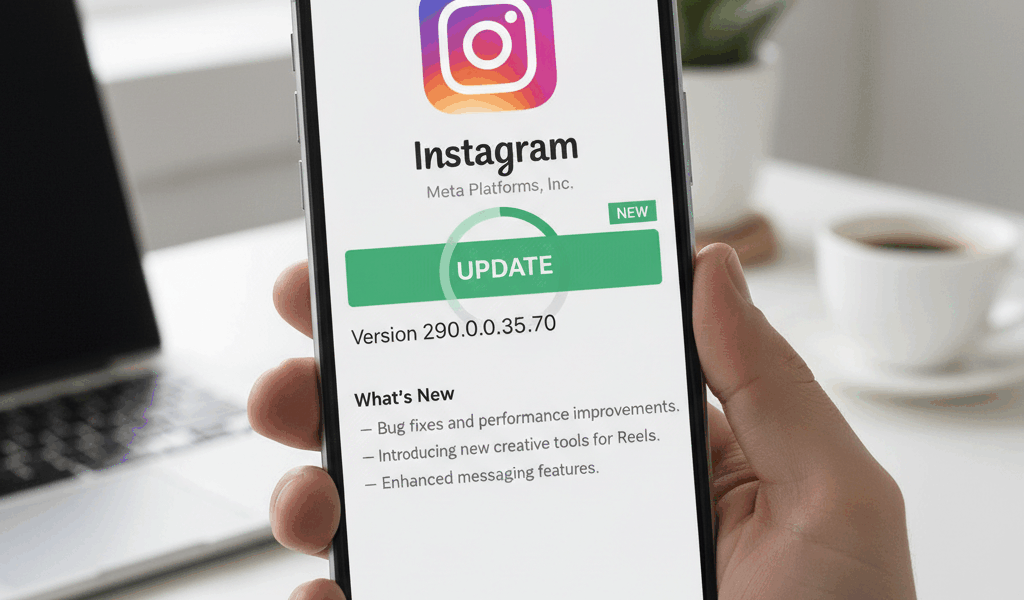
Open the App Store. Tap your profile icon in the top right. Scroll down to see pending updates. If Instagram has an update available, you’ll see it listed. Tap “Update” next to Instagram, or “Update All” to update everything at once.
If Instagram isn’t listed, you already have the latest version. You can pull down on the updates screen to refresh and double-check.
Android
Open the Google Play Store. Tap your profile icon, then “Manage apps & device.” Under “Updates available,” look for Instagram. Tap “Update” next to it, or update all apps at once.
Alternatively, search for Instagram in the Play Store directly. If an update is available, the button will say “Update” instead of “Open.”
Turning On Auto-Updates
If you don’t want to manually check for updates, let your phone handle it.
iPhone: Settings > App Store > toggle on “App Updates” under Automatic Downloads.
Android: Play Store > tap profile > Settings > Network preferences > Auto-update apps. Choose “Over any network” or “Wi-Fi only” depending on your data plan.
With auto-updates on, Instagram updates in the background whenever a new version drops. You might notice the app looking slightly different after opening it—that’s usually a fresh update.
When Updates Won’t Install
If the update button is stuck or gives an error, try these fixes:
Restart your phone. The classic tech support move, but it genuinely resolves most glitches.
Check your storage. Updates need space to download. If your phone is nearly full, free up some room and try again.
Check your internet connection. A flaky Wi-Fi connection can cause downloads to stall. Switch networks or try mobile data.
Sign out and back in to your app store account. Sometimes authentication hiccups prevent downloads. Logging out and back in refreshes your credentials.
Why Updates Matter
Beyond new features, updates patch security holes. Running an old version of any app—Instagram included—leaves you exposed to vulnerabilities that have already been fixed. It’s not paranoid to stay updated; it’s just basic phone hygiene.
New features also sometimes roll out gradually and only appear after you’ve updated. If friends are using a feature you don’t see, check whether you’re on the latest version.
Downgrading to an Old Version
You can’t do this through the official app stores. If an update breaks something you liked, you’re stuck waiting for Instagram to fix it or learn to live with the change. This is the tradeoff of automatic updates—you lose control over which version you run.



Stay in the loop
Get the latest wildlife research and conservation news delivered to your inbox.