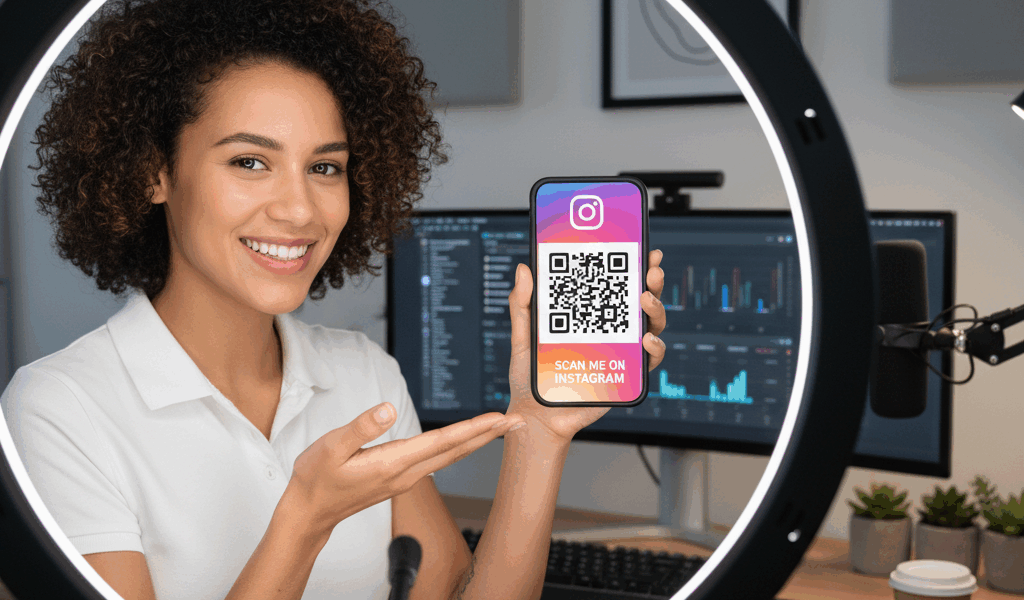
Video Instagram QR Codes: How to Use advice has gotten complicated with all the outdated tips and platform changes flying around. Here’s what actually works in 2026.
Instagram QR Codes: How to Use Them
Instagram has a built-in QR code that links directly to your profile. Here’s when and how to actually use it.
Getting Your QR Code
- Open Instagram
- Go to your profile
- Tap the menu (three lines)
- Select “QR Code”
Your code pops up. You can change colors and add your selfie or an emoji to customize it.
Sharing It
Tap the share icon to send it anywhere – messages, email, other apps. Or screenshot it and use wherever you want.
People scan it with their phone camera and it takes them straight to your Instagram profile.
When QR Codes Actually Make Sense
Business cards: Print your QR code on there. People scan instead of typing your username.
Physical products or packaging: If you sell stuff, put the code on packaging.
Events: Display at your table, booth, or presentation.
Printed materials: Flyers, posters, menus – anywhere your target audience will see it in person.
When They Don’t Make Sense
Don’t put a QR code in a digital post. If someone’s already on their phone looking at your content, just give them a clickable link. QR codes are for bridging physical to digital.
Making Them Look Good
Instagram’s built-in customization is limited. For fancier designs, use a QR code generator like QR Code Monkey or Canva. Just make sure to test that it scans properly before printing 500 business cards.
Pro Tip
Print it bigger than you think. Small QR codes on business cards can be hard to scan in bad lighting. Give it some room.
The Reality
QR codes are useful but not magic. Most people finding you will still search your username or click a link. The QR code is for specific situations where scanning is genuinely easier than typing.


Stay in the loop
Get the latest wildlife research and conservation news delivered to your inbox.