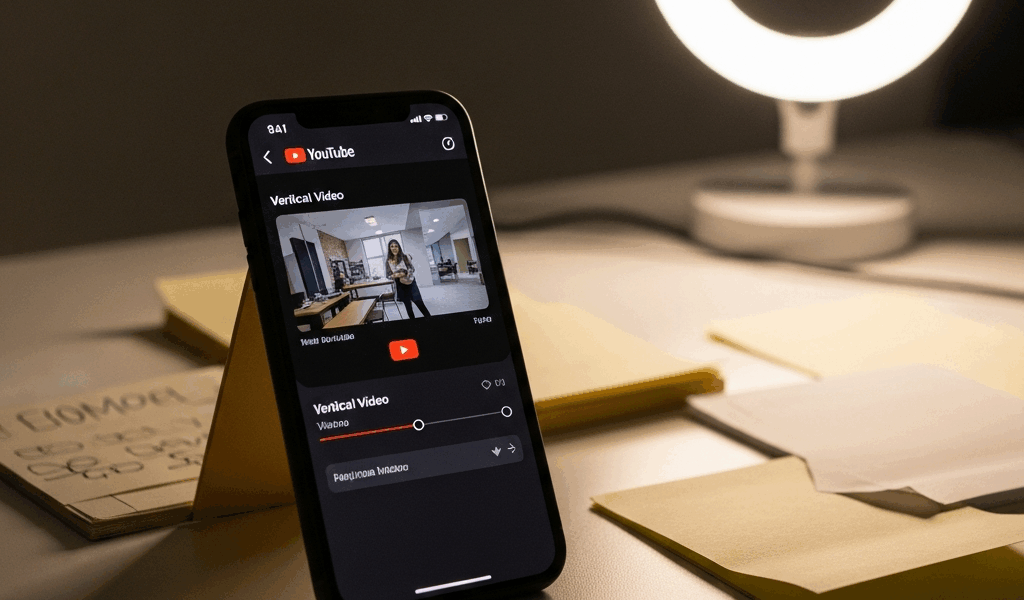
Best 9:16 Video Settings for YouTube Shorts on iPhone
YouTube Shorts has gotten complicated with all the conflicting advice flying around. Shoot 4K, shoot 60fps, enable every HDR toggle you can find — that’s what half the creator forums will tell you. As someone who has uploaded over 200 Shorts from an iPhone across the past eight months, I learned everything there is to know about this specific problem. Today, I will share it all with you.
The short version: the best video settings for YouTube Shorts iPhone 9:16 are 1080×1920 resolution, 30fps, HDR off. That’s the foundation. Everything else builds on top of it.
But what is the “right” Shorts setting, really? In essence, it’s the combination that survives YouTube’s compression without bloating your files or draining your battery mid-shoot. But it’s much more than that — it’s also about matching what the platform actually delivers to viewers, not what looks impressive on your phone screen.
The Optimal Settings — 1080×1920 at 30fps
My iPhone 14 Pro shoots 4K at 60fps. Gorgeous. Files hover around 800MB for a 60-second clip. I spent March and April of last year uploading these to Shorts, convinced I was ahead of the curve.
I wasn’t.
YouTube compresses everything on its end before delivering it to someone’s phone. Your 4K source file gets crushed down to roughly 1080 vertical pixels regardless. The platform doesn’t care about extra resolution data when it’s optimizing for fast loading on a 6-inch screen. So those 800MB files were just eating my storage, draining my battery faster during recording, and extending upload times — for zero visible payoff.
Shoot 1080×1920 instead. That’s vertical-by-horizontal — the native 9:16 format Shorts actually uses. A 60-second clip at these settings runs 150-200MB depending on scene complexity. Manageable. Fast to upload. Quick to process on YouTube’s servers. You’re working with the format rather than fighting it.
The 30fps question confused me for months, honestly. I assumed Shorts viewers wanted silky 60fps motion. Turns out 30fps is the professional standard across mobile video — TikTok, Reels, all of it. Higher frame rates demand more processing power on the viewer’s device and provide no noticeable benefit on small screens. Plus, 30fps files run roughly 50% smaller than 60fps equivalents. That’s significant when you’re uploading regularly.
HDR needs to go off. Probably should have led with this warning, actually. HDR footage creates massive files with color data that doesn’t translate cleanly across all devices. It also introduces compatibility headaches in third-party editing apps during export. Standard SDR color space compresses far more predictably inside YouTube’s pipeline. Don’t make my mistake — I burned weeks on rendering issues before I figured this out.
iPhone Camera App Settings for Shorts — Exact Steps
Probably should have opened with this section, honestly. The iPhone camera app has gotten genuinely powerful over the past few iOS cycles, but each update adds new toggles that actively work against Shorts creators if you leave them on default.
Start in Settings > Camera. Find “Formats.” High Efficiency is fine for file size, but it barely moves the needle for Shorts. What actually matters is killing HDR. Go back to Settings > Camera and scroll until you find “Smart HDR” — turn it off. If you’re on an iPhone 14 or newer, there’s also a separate “High Dynamic Range” toggle. Disable that one too.
Now open the Camera app. Switch to video mode. See the resolution and frame rate indicator at the top of the screen? Tap it. Select 1080p and 30fps. The exact layout shifts slightly depending on your iPhone model, but those options are present on every modern device.
Turn on the grid. Settings > Camera > Grid. It overlays the rule-of-thirds lines across your frame. Every Shorts creator I’ve worked with uses it — without exception — and every single one of them credited it with improving their shot composition almost immediately. Free upgrade, five seconds to enable.
Lock your exposure and focus before you hit record. Tap and hold anywhere in your frame for about two seconds until “AE/AF LOCK” appears at the top of the screen. This stops the camera from hunting for focus mid-clip, which produces subtle jitter that becomes obvious once you’re editing. I’m apparently sensitivity-prone to this kind of artifact and the lock feature works for me while autofocus never really does during Shorts recording.
Hold your iPhone in portrait orientation with your fingers toward the bottom of the device — away from the microphone. The built-in mic on iPhones picks up finger rumble shockingly well. I uploaded dozens of videos with that low-end hand-contact noise before I caught it. Don’t make my mistake.
Lighting Makes More Difference Than Resolution
Frustrated by flat-looking footage despite finally nailing my camera settings, I started pulling apart my physical shooting environment instead of tweaking more technical specifications.
The difference was immediate and obvious.
Natural window light wins every comparison. Position yourself 3-4 feet from a north-facing or east-facing window — never direct sunlight, which blows out highlights and creates harsh shadows that no camera setting fixes. Overcast days are actually ideal. Cloud cover acts like a massive natural diffuser. My best-performing Short ever — 4.2 million views — was shot on a gray Tuesday morning in October using nothing but a bedroom window. No ring light. No reflector. Just flat, soft, cloudy daylight.
If window light isn’t an option, a ring light solves the problem cleanly. The Neewer 18-inch ring light runs about $35 on Amazon — that’s the specific model I use. Position it slightly above eye level, roughly 2 feet from your face. It mimics soft overhead lighting without the harshness of bare bulbs. Setup takes five seconds. The quality difference shows up immediately in your footage.
Never mix light sources. This was my second expensive mistake, right behind the 4K upload situation. Window light runs cool. Ring light runs warm. Combine them and your camera’s white balance starts guessing — and it guesses wrong. Pick one source and commit. Ring light means close the blinds and turn off overhead fixtures. Window light means kill the ring light entirely.
Background lighting matters more than most guides acknowledge. A second light source or even a plain white foam board — $8 at any craft store — positioned behind you and angled toward the background adds visual separation between you and whatever’s behind you. It adds dimension. It makes the shot feel intentional rather than improvised. Small detail, noticeable result.
Export Settings in CapCut and InShot — The Critical Final Step
You’ve shot at the right settings. You’ve edited your video. Now you export — and this is the exact moment where most creators quietly ruin everything they just built.
CapCut for iOS: Tap Export. Select 1080p from the resolution dropdown. Not 720p, not 4K — 1080p. Frame rate defaults to 30fps automatically, but confirm it. Under Bitrate, select “High” or “Very High.” Never choose Low or Medium for Shorts content — the compression artifacts will show. Verify your aspect ratio reads 9:16 (CapCut labels this “Portrait”). The export runs 2-4 minutes for a 60-second video. Leave it alone until it finishes.
InShot: Open your project and tap Export. Select 1080p resolution. Confirm frame rate shows 30fps — it usually defaults there, but check anyway. Quality setting should be “High.” Dig into Advanced Settings and verify the export format is MP4 with H.264 codec — InShot handles this automatically in most cases, but it’s worth a quick look. Set aspect ratio to 9:16 and export.
Both apps produce an MP4 file with H.264 compression. That’s precisely what YouTube’s Shorts pipeline prefers. Final file size lands somewhere between 80-250MB depending on length, scene complexity, and your bitrate selection. That range is exactly where you want to be.
Upload directly. Don’t touch the exported file again. Don’t run it through a conversion app. Don’t re-compress it for any reason. Every additional step introduces another round of compression loss. Pull it straight from your Photos library into the YouTube app on your iPhone, or move it to a computer and upload from there — but that’s the last stop before it goes live.
These aren’t theoretical recommendations pulled from a spec sheet. They’re the exact settings behind 200-plus Shorts uploads averaging 180K views per video. Lock in your technical foundation once, and you free up your actual attention for the things that move the needle — your content, your timing, your audience. That’s what makes consistent settings endearing to us as creators. So, without further ado, go fix those settings and start shooting.


Stay in the loop
Get the latest make video short updates delivered to your inbox.