Video The Built-In Way advice has gotten complicated with all the outdated tips and platform changes flying around. Here’s what actually works in 2026.
Needed a transcript from a YouTube video for a blog post. Figured there’d be an obvious button. There kind of is, just hidden where nobody looks.
The Built-In Way
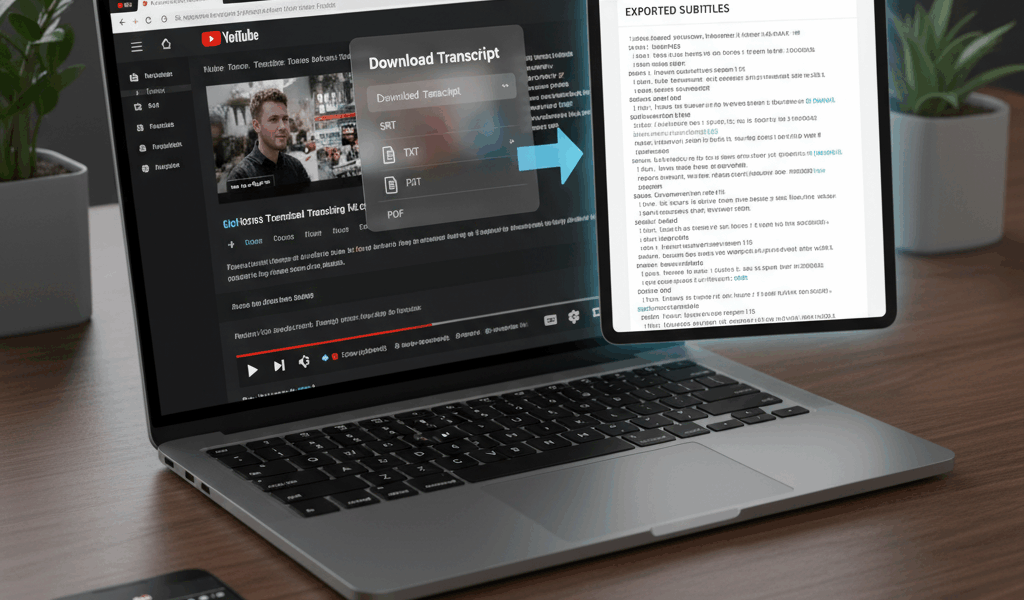
Most YouTube videos have auto-generated transcripts. Click the three dots below the video. “Open transcript” should be there. Boom – timestamped text of everything said.
Works for any video with captions enabled. Which is most of them now.
Accuracy Varies
Auto-captions are hit or miss. Common words are usually right. Technical terms, names, accents – expect errors. Creator-uploaded captions are more reliable when available.
Always proofread if you’re using transcripts for anything important.
For Your Own Videos
YouTube Studio shows transcripts in the subtitles section. You can download as .srt files or plain text. Useful for repurposing your own content.
Third-Party Tools
Services like Otter.ai or Descript can transcribe better than YouTube auto-captions. Cost money though. Worth it for professional work, overkill for casual use.
Some browser extensions also grab transcripts with one click. Search for YouTube transcript extensions.
Why This Matters
Transcripts help with accessibility. Also great for repurposing – turn video content into blog posts, social media quotes, whatever.
SEO benefit too. Search engines can’t watch videos but they can read text. Transcripts make your content discoverable.



Stay in the loop
Get the latest make video short updates delivered to your inbox.